CCleaner – Phone Cleaner
- 4.5
- Rating
- 100.00M
- Installs
- Free
- Price

 Analysis by App-foxy
Phone storage problems rarely arrive at a convenient moment. I usually notice them when a camera refuses to save a photo, an update stalls, or an app becomes awkwardly slow because the device is carrying years of leftovers. That is the recurring problem CCleaner tries to solve: finding expendable files and helping me reclaim space without making me search through folders one by one.
After using it as a practical maintenance tool rather than a magic speed button, I found its value fairly easy to judge. It can save time when storage is crowded, especially for people who do not want to inspect every cache and temporary file manually. At the same time, it is not a substitute for deleting large personal videos, moving photos elsewhere, or replacing an aging phone. Its strongest benefit is reducing the small decisions that make routine cleanup feel like a chore.
What using CCleaner feels like in everyday phone maintenance
I find CCleaner most useful as a quick checkpoint, not something that needs to run on a schedule. A scan can help me decide whether clutter is worth clearing or whether I should focus on larger personal files instead. That distinction makes routine maintenance more deliberate and sets up the question of what the app’s overview does better than checking storage by hand.
In-Depth Coverage of CCleaner – Phone Cleaner
The first useful setup is a scan, not an aggressive cleanup
The app comes from Piriform and sits in the Tools category. It is free to start, with optional in-app purchases ranging from $1.39 to $27.99 per item. I would approach the first launch with one simple goal: understand what it has identified before approving removal. A cleaner is useful only when I remain confident that the files being removed are disposable.
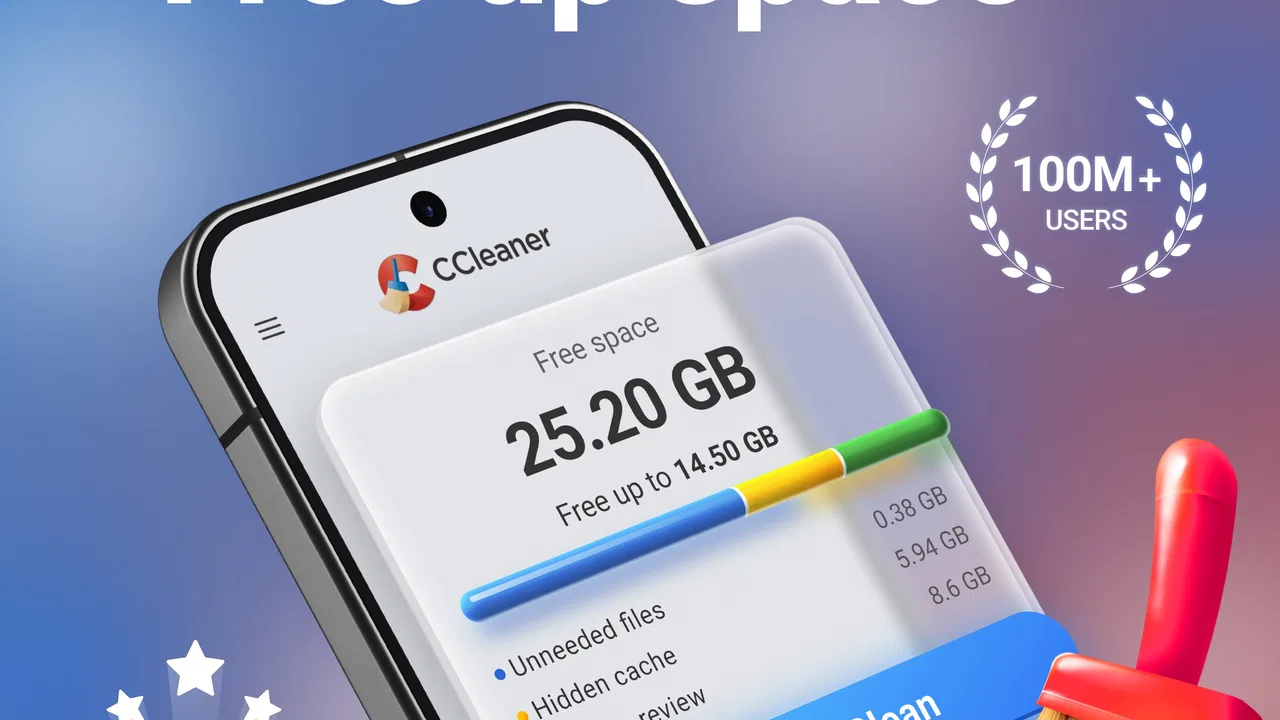
The initial scan is most helpful as an overview. Instead of opening individual app settings and checking temporary storage separately, I can see where clutter is concentrated and decide whether the potential space saving is worth acting on. That overview is more valuable than pressing a large cleanup control without reading the categories underneath it.
My practical advice is to begin with the safest-looking groups, then pause before touching anything that might contain personal material. Temporary files and stale leftovers are one thing; downloaded documents, saved media, or content I intentionally keep are another. The app can make the first group easier to identify, but it cannot know the personal value of every file as reliably as I can.
This is also where expectations matter. A cleaner may remove accumulated residue, but it will not transform a phone whose storage is genuinely full of high-resolution videos, offline maps, music, or messaging attachments. In that situation, the scan is still useful because it shows whether clutter is the problem or whether I need a broader storage review.
Why the overview saves more time than manual hunting
Without a tool like this, I would normally move through system settings, open several apps, inspect their storage screens, and repeat the process. That workflow is slow and inconsistent. I might clear one obvious cache while missing less visible leftovers elsewhere. CCleaner’s main convenience is bringing the inspection into one place.
The time saving is not just the number of taps. It is the reduction in uncertainty. When a phone reports low space, I want to know whether a quick cleanup can help or whether I should start removing large files. A consolidated view gives me that answer sooner, even when the final action is deciding not to clean anything automatically.
I also prefer treating the scan as a maintenance report. Running it after a long period of heavy downloading can reveal patterns: perhaps a few apps repeatedly build temporary clutter, or perhaps the real issue is a growing photo library. That distinction helps me choose a better remedy instead of repeating the same cleanup and wondering why the storage warning returns.
A realistic scenario: making room before leaving home
Imagine I am about to leave for a trip and want to download maps, save a few playlists, and take photos. The phone announces that storage is nearly full. I could spend several minutes opening apps individually, but I would rather run a scan, review the disposable categories, and clear the material that is genuinely unnecessary.
If that produces enough room, CCleaner has done exactly what I needed: it has removed a delay from a time-sensitive task. If it does not, the result is still informative. I know I should look at large videos, duplicate-looking downloads, or old offline content instead of repeatedly clearing small temporary files. That ability to separate a quick fix from a deeper storage problem is one of the app’s most practical strengths.
The same workflow applies before installing a large update or recording an event. I would not rely on a cleaner as my only preparation, but I would use it as the first pass because it is faster than manually checking every likely source of clutter.
Where it reduces friction during ordinary use
The biggest friction removed is repetitive navigation. Android already provides storage controls, and those controls remain important, but they often require me to remember which app is responsible for the mess. A dedicated cleaner gives me a more focused starting point when I want to deal with general clutter rather than troubleshoot one specific application.
That makes it particularly suitable for family members who understand that their phone is full but do not enjoy technical maintenance. I can explain a cautious routine: scan, inspect the categories, remove only what looks disposable, and then check whether enough space has returned. The process is easier to teach than a long tour through system settings.
You May Also Like

 Samsung Music
’s Quiet Strength Is Playing What You Already Own
Its reach comes less from spectacle than from dependable access to a personal library. That simplicity is both the app’s strongest retention engine and its ceiling.

 AccuWeather: Weather Radar
AccuWeather Review: A Quick, Clear Forecast for Everyday Decisions
For everyday plans, the best forecast is the one you can understand quickly. AccuWeather makes rain timing, radar, and local conditions easy to act on, with a few trade-offs.

 Hill Climb Racing
Why Hill Climb Racing Still Turns Crashes Into One More Run
A tiny car, a bumpy hill and one more upgrade: Hill Climb Racing keeps resurfacing because its simple chaos makes every near-miss feel personal.

 AliExpress - Shopping App
AliExpress Makes Global Shopping Feel Personal, but Shoppers Bear the Risk
AliExpress turns a global marketplace into a pocket-sized discovery engine. Its reach is useful, its shopping loop compelling, and its trade-offs easy to miss.

 Lords Mobile: Kingdom Wars
Lords Mobile Is a Kingdom-Building Routine, Not a Quick Match
A case-by-case verdict on the building, battles, device demands, and social commitments that make Lords Mobile rewarding for some players and exhausting for others.

 PDF Scanner app - TapScanner
TapScanner Makes Paperwork Easier to Capture, Check, and Share
TapScanner makes scanning with a phone feel less like a rescue operation and more like a dependable step in getting work done. Its capture tools are useful, though not flawless.
More From Our News Desk
View All News


It can also help after a period of intensive messaging or browsing, when small temporary items accumulate across several services. I would still review anything connected with downloads or personal files, but the app gives me a faster way to identify the broad cleanup opportunity before I start opening individual apps.
There is a useful psychological benefit too. Storage maintenance often gets postponed because it feels endless. A focused scan turns an undefined task into a short decision: review the findings, clean the safe portion, and reassess. That does not make every storage issue disappear, but it lowers the barrier to doing something sensible.
What I would not let a cleaner decide for me
I would never treat an automated suggestion as permission to delete without checking. Personal files can be stored in locations that look ordinary, and a filename or category may not communicate why I saved something. The app is best at identifying candidates for review, not understanding my memories, work documents, or travel plans.
I would be especially careful before clearing anything related to downloads, saved media, or content that an app may need for offline use. A cleanup can be technically successful and still inconvenient if it removes something I expected to access without an internet connection. The few seconds spent reading the selection are worth it.
Another sensible habit is to avoid cleaning simply because the app is available. If the phone has ample free space and everything works normally, there may be little reason to intervene. Maintenance is most useful when it solves a visible problem or prevents an immediate one, not when it becomes a ritual with no clear benefit.
How it compares with the usual alternatives
The closest alternative is Android’s own storage management. System tools have the advantage of being built into the phone and are often the right choice when I need precise control over one application, a large file, or a specific category. They are also better suited to someone who wants to understand exactly where every item lives.
CCleaner is more convenient when I want a broad first look. Instead of deciding which settings page to visit, I begin with a cleaner-oriented scan. That makes it a useful layer above manual maintenance, not necessarily a replacement for the operating system’s controls. When precision matters, I would move from its overview to Android’s own storage screen and inspect the individual source.
File-management apps can be better for locating large videos, reorganizing folders, and finding personal files that are safe to archive. They address a different part of the problem. CCleaner is more focused on reducing clutter and making the first cleanup decision easier; a file manager is stronger when the phone is full because of meaningful content rather than temporary residue.
The same distinction applies to cloud backup or an external storage workflow. If my gallery is the main reason the phone is full, transferring or backing up photos solves the underlying problem more effectively than repeatedly clearing junk. I would choose CCleaner for the quick cleanup pass and a storage-management solution for long-term capacity planning.
Performance claims need a realistic interpretation
I would not install this expecting every phone to become dramatically faster. Removing unnecessary files can make storage management less stressful, and freeing space may help when the device is under pressure, but a cleaner cannot repair weak hardware, poor battery health, or an app that is badly behaved.
That limitation is important because it changes how I measure success. I judge the app by whether it helps me recover useful space with less effort, not by whether it creates a completely different phone. If I am troubleshooting crashes or sluggishness, I would also update apps, restart the device, check system storage, and identify any single application consuming an unusual amount of space.
In other words, the app is a maintenance assistant. It is not a universal diagnosis tool. That narrower role is not a flaw; it simply prevents disappointment and keeps the cleanup process connected to a real need.
Who will get the most from it
I think it suits people who regularly run out of space but do not want to become experts in Android storage. It is also useful for anyone who prefers a single review step before deciding whether to delete, archive, or leave files alone. The free entry point makes it easy to test whether that workflow fits a particular phone.
It may be especially helpful on a shared family device, where several people install apps, download media, and forget about temporary content. A simple scan can provide a common starting point for discussing what should be removed, rather than relying on guesses about why storage is disappearing.
The app is available for Everyone, and its broad purpose is easy to understand. Still, ease of use should not be confused with permission to skip judgment. A less technical user may need guidance during the first cleanup, particularly when the suggested items include anything that could be mistaken for a personal download.
Who should skip it or choose another approach
I would skip it if I already manage storage comfortably through Android’s built-in tools and prefer maximum control over every deletion. In that case, another layer may add little beyond an extra scan and another interface to review.
I would also look elsewhere if my main problem is a huge photo or video library. A backup, transfer, or file-organization routine will address those files more directly. Likewise, if I am trying to diagnose battery drain, malware concerns, or a single unstable app, a general cleaner is not the right first tool.
People who dislike optional purchase prompts may also prefer a completely built-in solution. CCleaner is free, but it includes in-app purchases, so I would pay attention to which functions are part of the basic experience and which are presented as upgrades before committing to a longer-term routine.
Reliability, version, and the practical decision
The current version is 25.23.0, and the app requires Android 10 or later. That requirement is worth checking before planning to use it on an older handset. On a compatible phone, I would still keep the operating system’s own storage screen available, because it provides the detailed confirmation that a broad cleaner cannot replace.
The app has a 4.6 average from around three million ratings, with over 100 million installs. Those figures suggest that the basic cleanup idea has broad appeal, but they do not remove the need for careful use. A large user base can tell me that the workflow is familiar to many people; it cannot decide whether a particular suggested file matters to me.
My final judgment is positive but deliberately practical. CCleaner earns its place when I need a quick, organized first pass through phone clutter and want to spend less time hunting through settings. Its real advantage is friction reduction: it helps turn a vague low-storage warning into a manageable review.
Use it as a cautious cleanup assistant, not as an automatic answer to every performance problem. Review the selections, keep personal files under your own control, and switch to backup, file management, or Android’s detailed tools when those are better suited to the problem. For that role, this free Tools app from Piriform is a sensible recommendation to a friend who wants storage maintenance to take minutes rather than become an afternoon project.
FAQs for CCleaner – Phone Cleaner
01What does CCleaner – Phone Cleaner do for my device?
CCleaner – Phone Cleaner is designed to optimize your Android device by removing unnecessary files, clearing cache, and freeing up storage space. It helps improve performance by cleaning junk files, managing apps, and stopping background tasks that drain battery life. Additionally, it offers features like RAM boosting and system monitoring to ensure your device runs smoothly.
02Is CCleaner – Phone Cleaner safe to use?
Yes, CCleaner – Phone Cleaner is safe to use. Developed by Piriform, a reputable company known for its PC optimization tools, the app is designed to enhance device performance without compromising your data. It has millions of downloads and positive reviews from users, which attest to its reliability and effectiveness.
03Does CCleaner – Phone Cleaner require root access?
No, CCleaner – Phone Cleaner does not require root access to function. It is designed to work seamlessly on both rooted and non-rooted devices, making it accessible to a wide range of users. The app provides all its cleaning and optimization features without needing elevated permissions, ensuring ease of use.
04Are there any in-app purchases or ads in CCleaner – Phone Cleaner?
CCleaner – Phone Cleaner offers both a free version with ads and a premium version without ads. The premium version, available through in-app purchases, provides additional features such as detailed system monitoring and automated cleaning options. Users can choose the version that best suits their needs and budget.
05How often should I use CCleaner – Phone Cleaner?
It's recommended to use CCleaner – Phone Cleaner regularly to maintain your device's performance. Depending on usage, running the cleaner once a week can help manage accumulated junk files and optimize speed. The app also offers scheduling options, allowing users to automate cleaning tasks at preferred intervals for consistent performance boosts.
Pros
- Efficient cache cleaning boosts phone speed.
- User-friendly interface for easy navigation.
- Customizable cleaning options for different needs.
- Monitors storage space with real-time updates.
- Battery optimization extends device lifespan.
Cons
- Occasional intrusive ads disrupt usage.
- Advanced features require in-app purchases.
- Some scans can be slow on older devices.
- May accidentally delete important files.
- Limited customer support availability.

CCleaner – Phone Cleaner
Gallery